


Enterprise Server: Initial Setup (Kubernetes on Azure AKS)
These are the installation instructions for pganalyze Enterprise Server, targeted for a Kubernetes cluster managed by Azure AKS.
- Installation Steps
- Pre-requisites
- Step 1: Re-publish the Docker image to your private container registry
- Step 2: Configure Azure managed identity for workload authentication
- Step 3: Set up a Kubernetes secret for configuration settings
- Step 4: Create the pganalyze Enterprise deployment
- Step 5: Run the Enterprise self-check to verify the configuration and license
- Step 6: Initialize the database
- Step 7: Log in to pganalyze
- Step 8: Preparing your PostgreSQL database for monitoring
- Step 9: Add your first database server to pganalyze
- Next steps
- Appendix: How to apply config changes
Installation Steps
Pre-requisites
- Provision an Azure Kubernetes Service (AKS) cluster in your Azure subscription
- Provision a PostgreSQL database (e.g., Azure Database for PostgreSQL - Flexible Server) to store pganalyze statistics
- The pganalyze statistics database must have the
pgcryptoandbtree_ginextensions enabled under the “Server Parameters” section, using theazure.extensionssetting
- The pganalyze statistics database must have the
- Azure CLI (
az) installed on your machine and logged in with appropriate permissions on your Azure subscription - Kubernetes CLI (
kubectl) installed and configured to access your AKS cluster
Step 1: Re-publish the Docker image to your private container registry
The goal of this first step is to publish the pganalyze Enterprise container image to your private Azure Container Registry, which can be accessed from your Azure AKS cluster.
Perform the next steps on a machine that has full internet connectivity with no outbound access restrictions.
First, log in with your license information, shared with you by the pganalyze team:
docker login -e="." -u="pganalyze+enterprise_customer" -p="YOUR_PASSWORD" quay.ioNow pull the image, replacing VERSION with the latest pganalyze Enterprise version:
docker pull quay.io/pganalyze/enterprise:VERSIONCreate a container registry in Azure (if you don’t have one):
az acr create --resource-group YOUR_RESOURCE_GROUP --name pganalyzeregistry --sku BasicLog in to your Azure Container Registry:
az acr login --name pganalyzeregistryTag the pganalyze image for your ACR, replacing the values (REGISTRY_NAME, VERSION):
docker tag quay.io/pganalyze/enterprise:VERSION pganalyzeregistry.azurecr.io/pganalyze-enterprise:VERSIONAnd now push the tag to the registry:
docker push pganalyzeregistry.azurecr.io/pganalyze-enterprise:VERSIONStep 2: Configure Azure managed identity for workload authentication
pganalyze Enterprise requires a managed identity to authenticate with Azure services like Event Hub for log streaming. Follow these steps to set up the identity and configure Kubernetes workload identity federation.
Create the managed identity
Create a managed identity that will be assigned to your AKS cluster:
az identity create --resource-group YOUR_RESOURCE_GROUP --name pganalyze-identityAssign the identity to your AKS cluster
Enable managed identity on your AKS cluster and assign the identity you just created:
az aks update --resource-group YOUR_RESOURCE_GROUP --name YOUR_AKS_CLUSTER \
  --enable-managed-identity \
  --assign-identity /subscriptions/SUBSCRIPTION_ID/resourcegroups/YOUR_RESOURCE_GROUP/providers/Microsoft.ManagedIdentity/userAssignedIdentities/pganalyze-identity
You may be prompted to confirm switching from system-assigned to user-assigned managed identity. Type y to proceed.
Get the OIDC issuer URL
Workload identity federation requires the OIDC issuer URL from your AKS cluster. Retrieve it with the show command:
az aks show --resource-group YOUR_RESOURCE_GROUP --name YOUR_AKS_CLUSTER \
  --query oidcIssuerProfile.issuerUrl -o tsv
Save this URL—you’ll need it in the next step. It will look something like:
https://eastus.oic.prod-aks.azure.com/SUBSCRIPTION_ID/CLUSTER_ID/
Create federated identity credentials
Workload identity federation establishes a trust relationship between your Kubernetes ServiceAccount and the Azure managed identity. This is required for the pod to authenticate using the identity.
Create the federated credential using the OIDC issuer URL from above:
az identity federated-credential create \
  --resource-group YOUR_RESOURCE_GROUP \
  --identity-name pganalyze-identity \
  --name pganalyze-fic \
  --issuer "https://eastus.oic.prod-aks.azure.com/SUBSCRIPTION_ID/CLUSTER_ID/" \
  --subject "system:serviceaccount:default:pganalyze-sa"
Replace the issuer URL with the one you retrieved above (it should already include your region, subscription ID, and cluster ID).
Grant Event Hub permissions for log streaming (optional)
Log Insights is an essential feature of pganalyze Enterprise, providing access to EXPLAIN plans through auto_explain, the information necessary to power Query Advisor, and
allowing pganalyze to classify all of your logs for easy searching and recognition. Gaining access to PostgreSQL logs in Azure is done using an Event Hub. The instructions for
setting up log streaming is covered in the Log Insights Setup for the collector as one of the steps to prepare your
Azure database for monitoring.
If you plan to use the built-in pganalyze Collector to monitor your PostgreSQL databases in Azure, you’ll need to grant the managed identity of the container the necessary permissions to the Event Hub. If you haven’t set up log streaming yet, you can skip this step for now and return to it later. Just note that log streaming won’t work until this step is completed.
az role assignment create \
  --assignee /subscriptions/SUBSCRIPTION_ID/resourcegroups/YOUR_RESOURCE_GROUP/providers/Microsoft.ManagedIdentity/userAssignedIdentities/pganalyze-identity \
  --role "Azure Event Hubs Data Receiver" \
  --scope /subscriptions/SUBSCRIPTION_ID/resourceGroups/YOUR_RESOURCE_GROUP/providers/Microsoft.EventHub/namespaces/YOUR_EVENT_HUB_NAMESPACE
Replace YOUR_EVENT_HUB_NAMESPACE with your actual Event Hub namespace name.
Step 3: Set up a Kubernetes secret for configuration settings
You can manage Kubernetes secrets using kubectl.
There are two sensitive settings, DATABASE_URL and LICENSE_KEY that we store using a Kubernetes secret.
The DATABASE_URL has the format postgres://USERNAME:PASSWORD@HOSTNAME:PORT/DATABASE and specifies the connection used for storing the pganalyze statistics data. We recommend using an administrative user on the statistics database for this connection.
For Azure Database for PostgreSQL, the hostname typically looks like: servername.postgres.database.azure.com
The LICENSE_KEY has been provided to you by the pganalyze team - replace KEYKEYKEY in the command with the actual key.
kubectl create secret generic pganalyze-secret \
  --from-literal=DATABASE_URL=postgres://USERNAME:PASSWORD@HOSTNAME:PORT/DATABASE \
  --from-literal=LICENSE_KEY=KEYKEYKEY \
  --dry-run=client -o yaml | kubectl apply -f -
Step 4: Create the pganalyze Enterprise deployment
Save the following text into a file pganalyze-enterprise.yml:
apiVersion: v1
kind: ServiceAccount
metadata:
name: pganalyze-sa
namespace: default
annotations:
azure.workload.identity/client-id: YOUR_CLIENT_ID
apiVersion: apps/v1
kind: Deployment
metadata:
name: pganalyze
namespace: default
labels:
app: pganalyze
spec:
selector:
matchLabels:
app: pganalyze
strategy:
type: Recreate
template:
metadata:
labels:
app: pganalyze
azure.workload.identity/use: "true"
spec:
serviceAccountName: pganalyze-sa
containers:
- name: main
image: 'pganalyzeregistry.azurecr.io/pganalyze-enterprise:VERSION'
resources:
limits:
memory: "8Gi"
ports:
- containerPort: 5000
envFrom:
- secretRef:
name: pganalyze-secret
apiVersion: v1
kind: Service
metadata:
name: pganalyze-service
namespace: default
labels:
app: pganalyze
annotations:
service.beta.kubernetes.io/azure-dns-label-name: pganalyze-enterprise
spec:
type: LoadBalancer
selector:
app: pganalyze
ports:
- protocol: TCP
port: 80
targetPort: 5000You will need to adjust the following settings:
image: pganalyzeregistry.azurecr.io/pganalyze-enterprise:VERSION- This needs to match the Docker image tag we created earlier- replace
YOUR_CLIENT_IDwith the Client ID of the managed identity you created earlier. You can get it by running:
az identity show --resource-group YOUR_RESOURCE_GROUP --name pganalyze-identity --query clientId -o tsvNow deploy the pganalyze Enterprise application:
kubectl apply -f pganalyze-enterprise.ymlNote on Memory Requirements: The pganalyze container requests 8GB of memory in the template above. Ensure your AKS cluster has nodes with sufficient memory. If you see “Insufficient memory” errors, you may need to scale up your cluster or reduce the requested memory limit in the YAML.
We can confirm the deployment is completed by checking:
kubectl get deployOutput should show:
NAME       READY   UP-TO-DATE   AVAILABLE   AGE
pganalyze  1/1     1            1           1m
Step 5: Run the Enterprise self-check to verify the configuration and license
Run the following command to perform the Enterprise self-check:
kubectl exec -i -t deploy/pganalyze -- /docker-entrypoint.enterprise.sh rake enterprise:self_checkThis should return the following:
Testing database connection... Success!
Testing Redis connection... Success!
Skipping SMTP mailer check - configure MAILER_URL to enable mail sending
Verifying enterprise license... Success!
All tests completed successfully!
If you see an error, double check your configuration settings, and especially the database connections.
In case you get an error for the license verification, please reach out to the pganalyze team.
Step 6: Initialize the database
Run the following to initialize the pganalyze statistics database:
kubectl exec -i -t deploy/pganalyze -- /docker-entrypoint.enterprise.sh rake db:structure:loadOutput should show:
Database 'postgres' already exists
set_config
-----------
        1
(1 row)
Then run the following to create the initial admin user:
kubectl exec -i -t deploy/pganalyze -- /docker-entrypoint.enterprise.sh rake db:seedAnd note down the credentials that are returned:
INFO -- : *****************************
INFO -- : *** INITIAL ADMIN CREATED ***
INFO -- : *****************************
INFO -- :
INFO -- : *****************************
INFO -- : Email: admin@example.com
INFO -- : Password: PASSWORDPASSWORD
INFO -- : *****************************
INFO -- :
INFO -- : Use these credentials to login and then change email address and password.
Now we can connect to the pganalyze UI. Run the following to determine the IP address or hostname of the load balancer that was provisioned:
kubectl get svc pganalyze-serviceOutput should show:
NAME                 TYPE           CLUSTER-IP    EXTERNAL-IP     PORT(S)        AGE
pganalyze-service    LoadBalancer   10.0.1.23     20.124.89.150   80:31234/TCP   5m
When you go to the external IP in your browser you should see the login page. You can now use the initial admin details to log in.
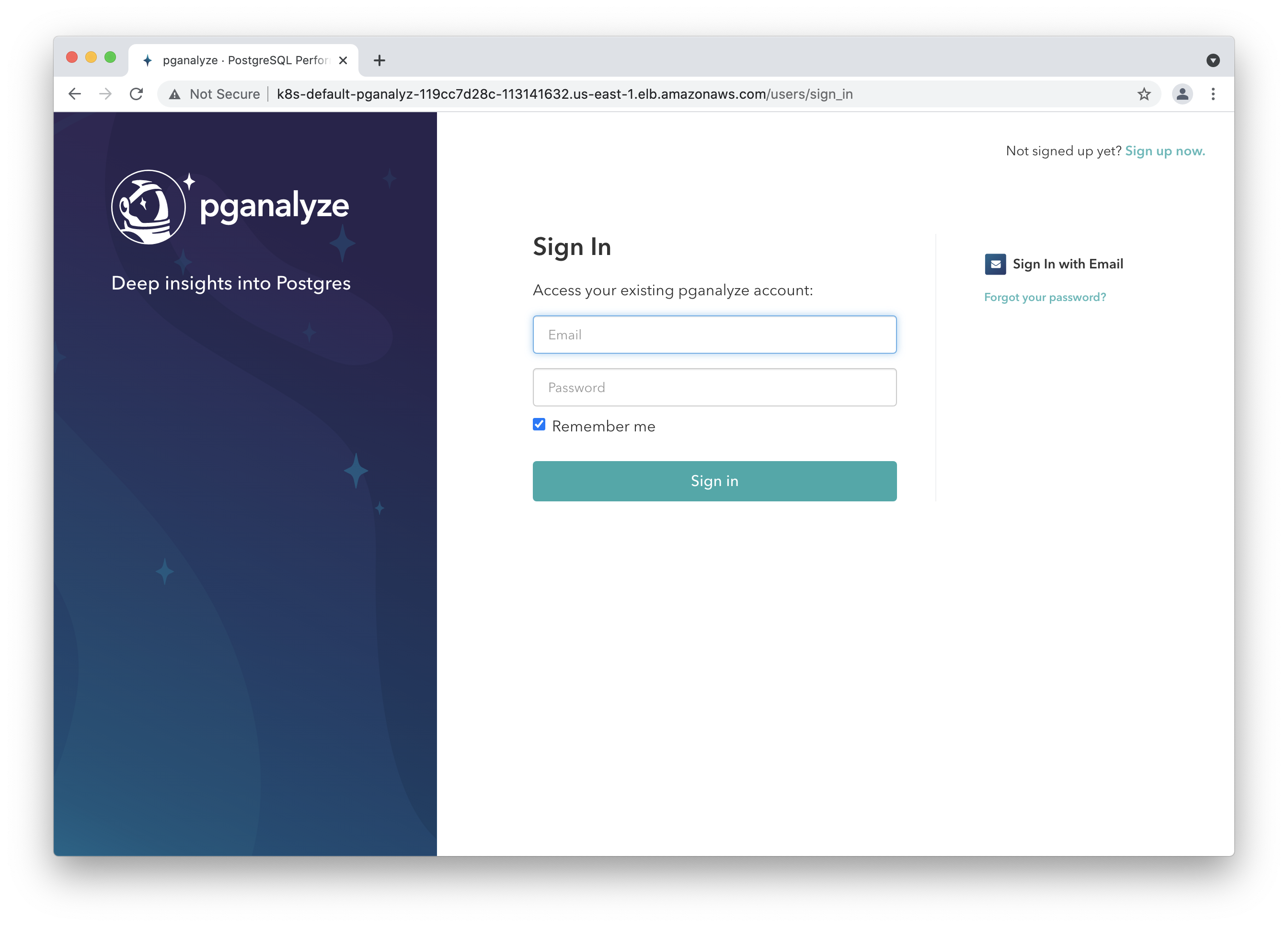
Step 7: Log in to pganalyze
Please now log in to the pganalyze interface using the generated credentials you’ve seen earlier when setting up the database.
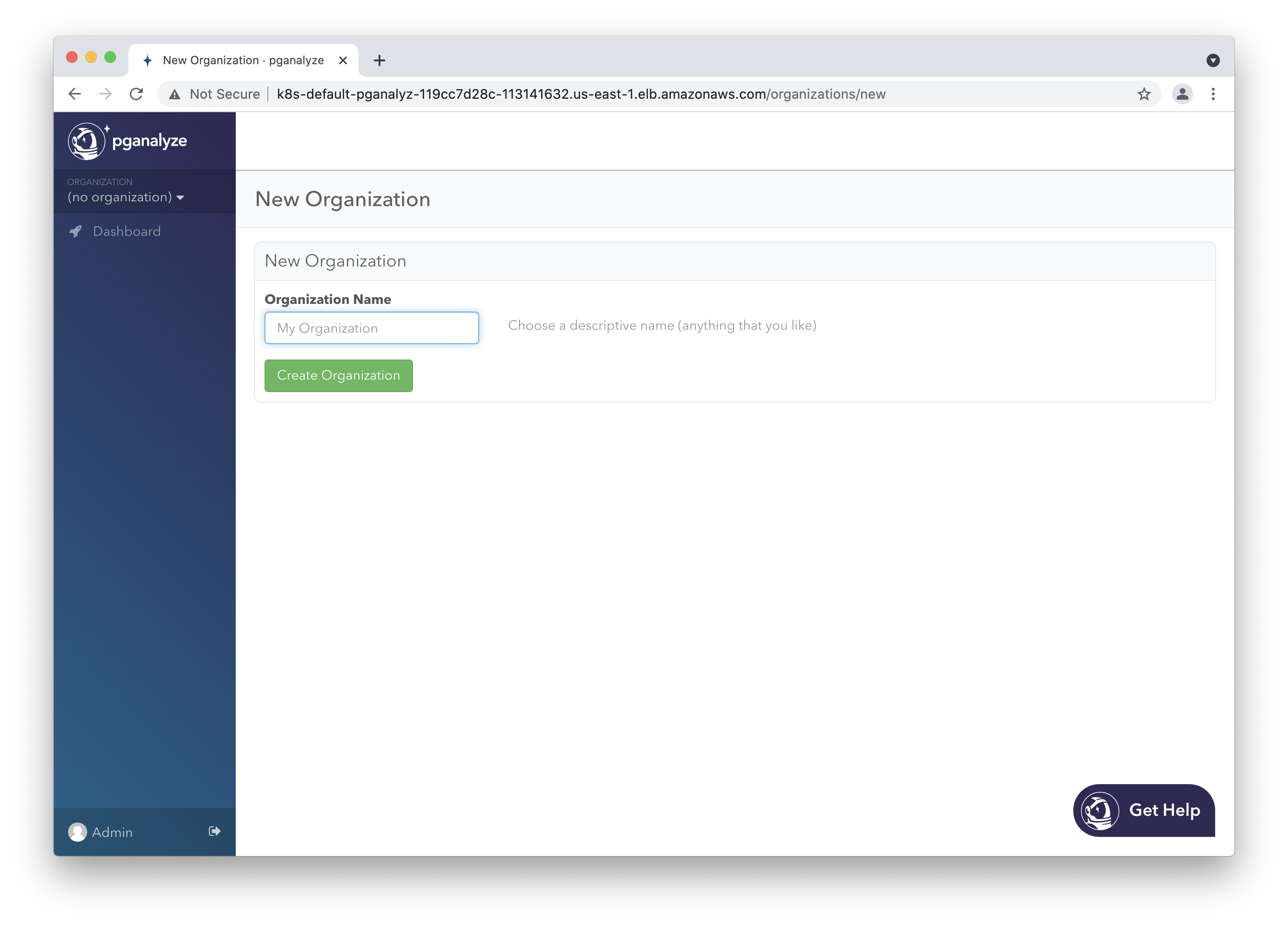
If authentication does not work, or you see an error message, please check the container’s logs using:
kubectl logs deploy/pganalyzeAfter successful login, choose an organization name of your choice (typically your company name).
Step 8: Preparing your PostgreSQL database for monitoring
Before you can add a database to the pganalyze installation, you’ll need to enable the pg_stat_statements extension on it. You can find details in the Azure Database for PostgreSQL instructions.
In addition you will need to either use the database superuser (usually “postgres”) to give pganalyze access to your database, or create a restricted monitoring user.
You don’t need to run anything else on your database server - the pganalyze container will connect to your database at regular intervals to gather information from PostgreSQL’s statistics tables.
Step 9: Add your first database server to pganalyze
For monitoring an Azure Database for PostgreSQL instance, you can use the bundled container with the pganalyze Enterprise Server container image.
To do so, fill out the “Add Postgres Server” form in the pganalyze UI. When monitoring Azure Database for PostgreSQL you can use the server hostname directly (e.g., servername.postgres.database.azure.com).
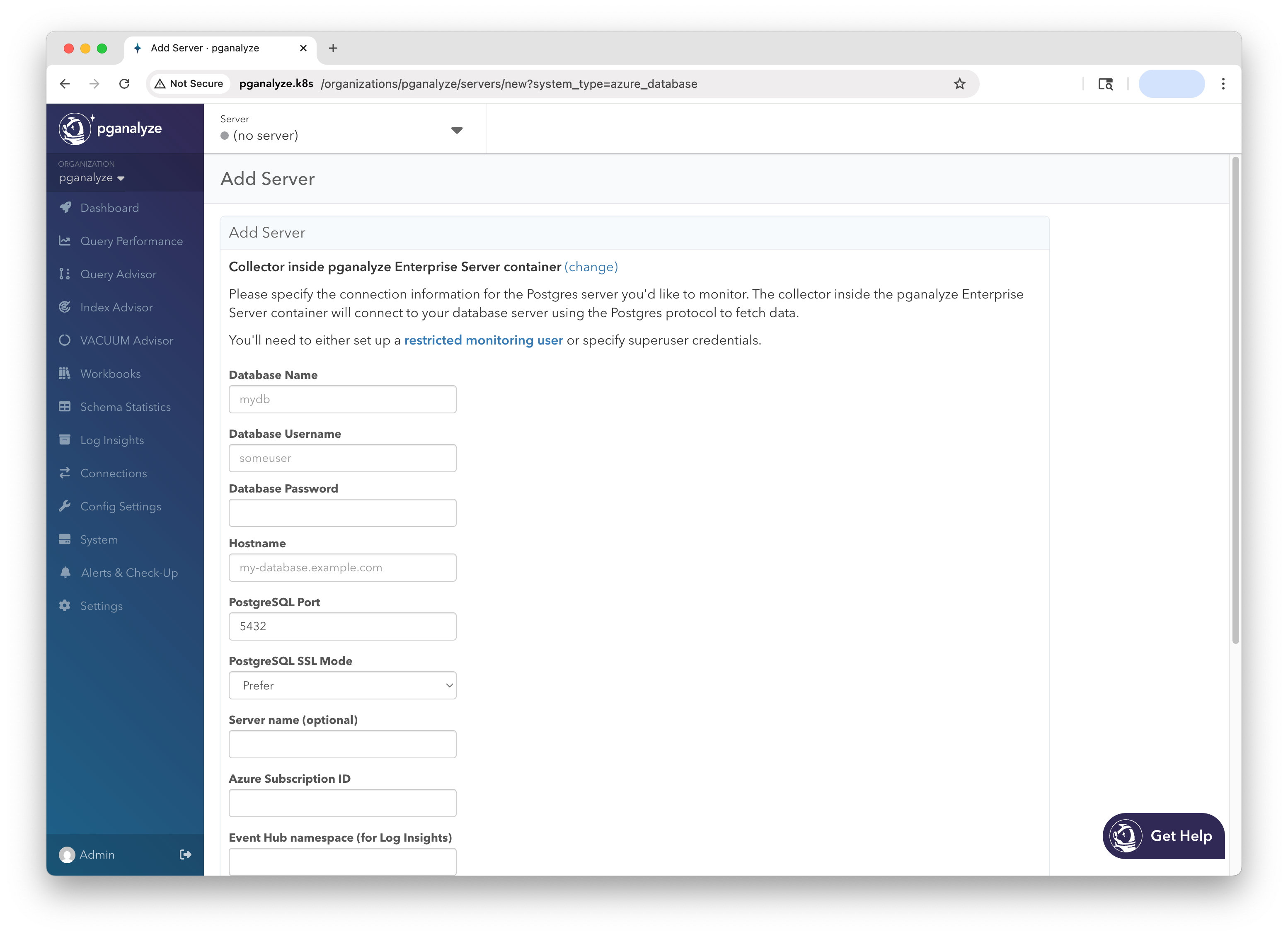
Once you click “Add Database” the collector running inside the container will update, and start collecting information within 10 minutes.
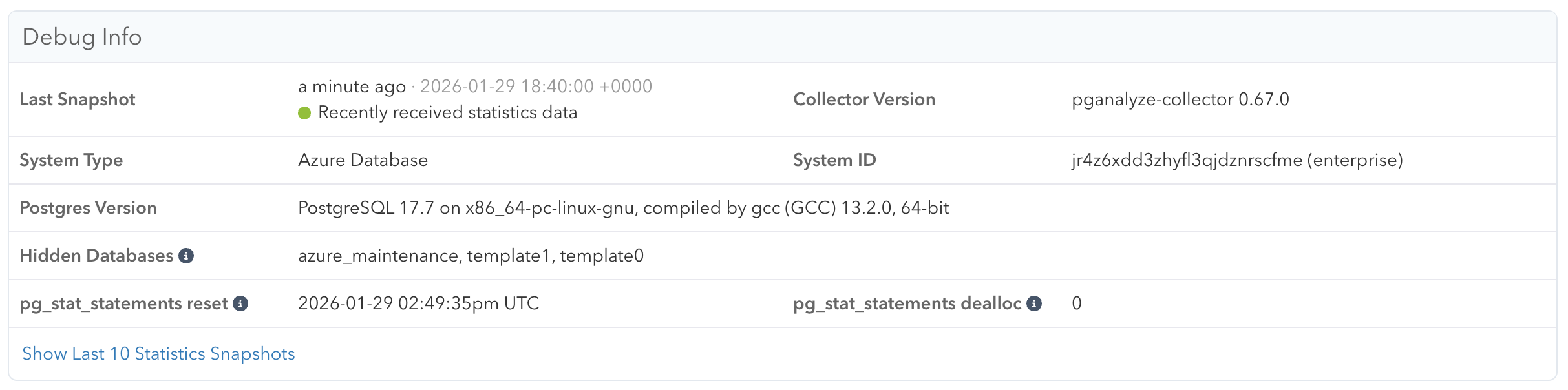
You can check whether any information has been received by clicking the “Server Settings” link in the left navigation, and scrolling down to the “Debug Info” section.
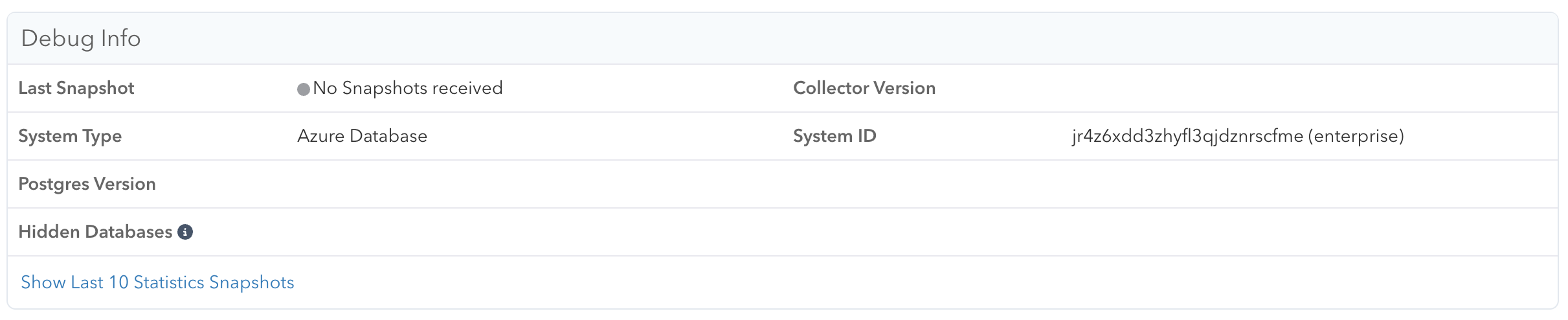
Once data is coming in successfully, you should see connection and metrics information appear in the Debug Info section.
Important: Be aware that some graphs need at least a few hours worth of data and might not work properly before that period.
Next steps
To learn more about adding additional team members, see Account Management.
We also recommend changing both the email and password of the admin user initially created (you can do so by clicking on “Admin” in the lower left of the screen).
Additionally, you can review all configuration settings for the Enterprise container.
Appendix: How to apply config changes
In case you want to make adjustments to the configuration, simply adjust the pganalyze-enterprise.yml file from earlier, and then apply with kubectl:
kubectl apply -f pganalyze-enterprise.ymlWhen changing the secrets information without changing the Kubernetes template, you can restart the deployment like this:
kubectl rollout restart deployment pganalyzeCouldn't find what you were looking for or want to talk about something specific?
Start a conversation with us →